Run it automatically
A suite you have to remember to run is a suite that stops running. Pick one of the two ways to automate it — and prefer the first when an orchestrator loads the table.
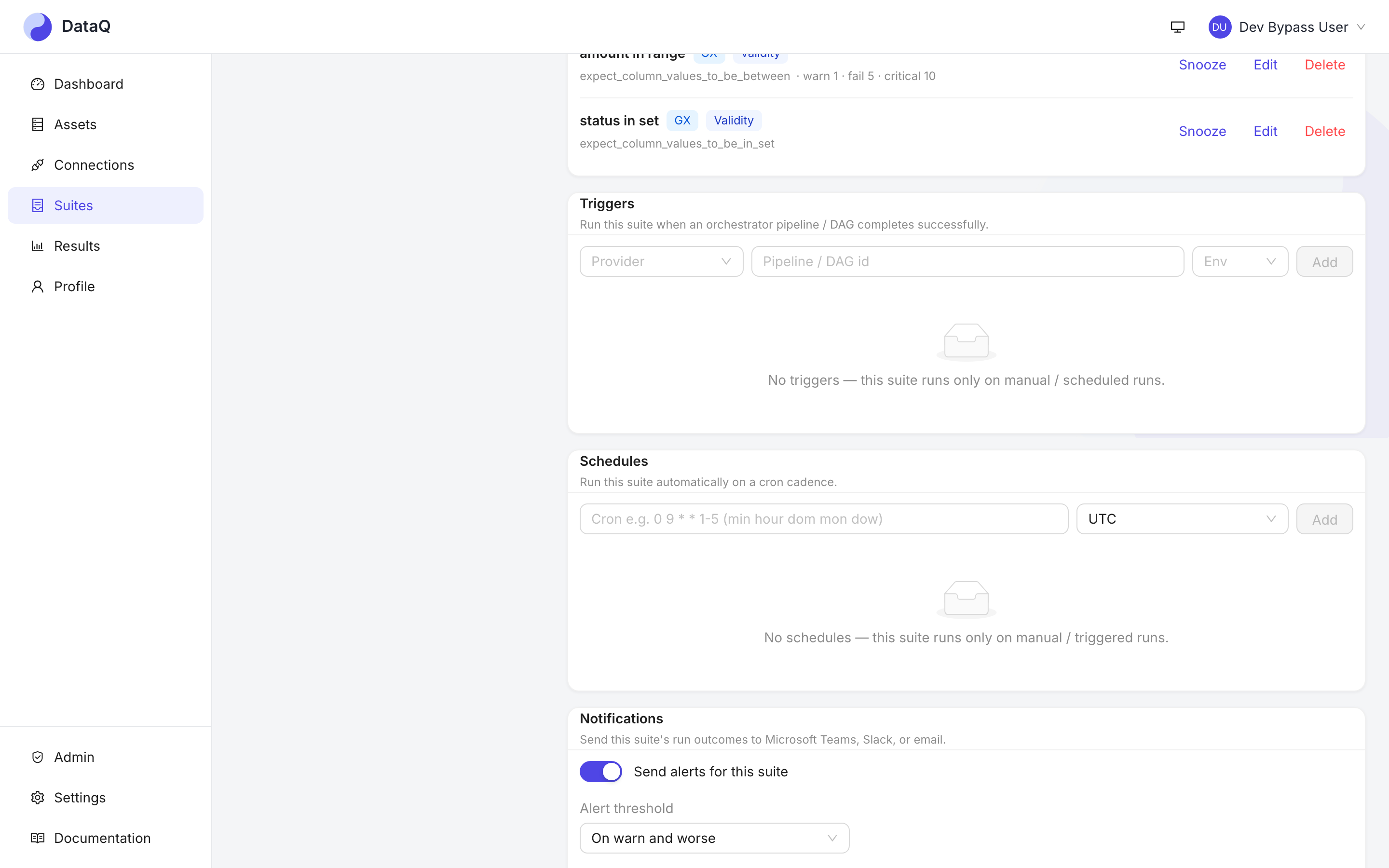
Triggers run the suite when a pipeline succeeds; Schedules run it on a cron.
Option A — trigger from your pipeline (recommended)
When Azure Data Factory, Airflow or dbt loads the table, DataQ can run the suite right after the load succeeds, and the result is correlated to that pipeline run.
- Ask an Admin to add the orchestrator as a connection (Connections → Add connection → Orchestration). This is a watcher, not a datasource — you never write checks against a pipeline.
- Make the orchestrator tell DataQ when runs finish. ADF posts through an Azure Monitor alert; Airflow and dbt call a small callback snippet you paste into the DAG or the post-build hook. Each is a few lines, documented in Orchestration. Without the callback, DataQ still polls every ten minutes, so you lose only the immediacy.
- On the suite, open Triggers, choose the provider, type the pipeline or DAG id, pick the environment, Add.
The next successful pipeline run starts the suite. On Results → Pipelines you see the pipeline run and the suite run it triggered on one line. A failed pipeline alerts you but does not run checks — there is nothing new to check.
Option B — schedule it
For data that arrives without an orchestrator DataQ can see (a nightly file drop on S3, a vendor feed), open Schedules, enter a cron expression and a timezone, Add.
| Cron | Meaning |
|---|---|
0 9 * * 1-5 |
09:00 on weekdays |
*/30 * * * * |
every 30 minutes |
0 6 1 * * |
06:00 on the first of the month |
The timezone is a full IANA zone, so 0 9 * * * in Europe/London follows London's clock
changes. A suite can hold several schedules; pause one with its switch without losing the
cadence.
Two semantics worth knowing before you rely on it: schedules tick at minute granularity, and missed ticks while the platform was down are not replayed — the schedule resumes at its next occurrence. Details: Scheduling.
Either way
Runs land on Results and the Dashboard like a manual run, the Triggered by column says whether a schedule or a pipeline started them, and the suite's alert settings apply.